Your friend texts you: “Did you just ask me to transfer money?”, or “Did you just ask me for a password?”
You didn’t. You see WhatsApp is sending messages on its own, and you’ve been logged out of your email account. What should you do when your phone gets hacked?
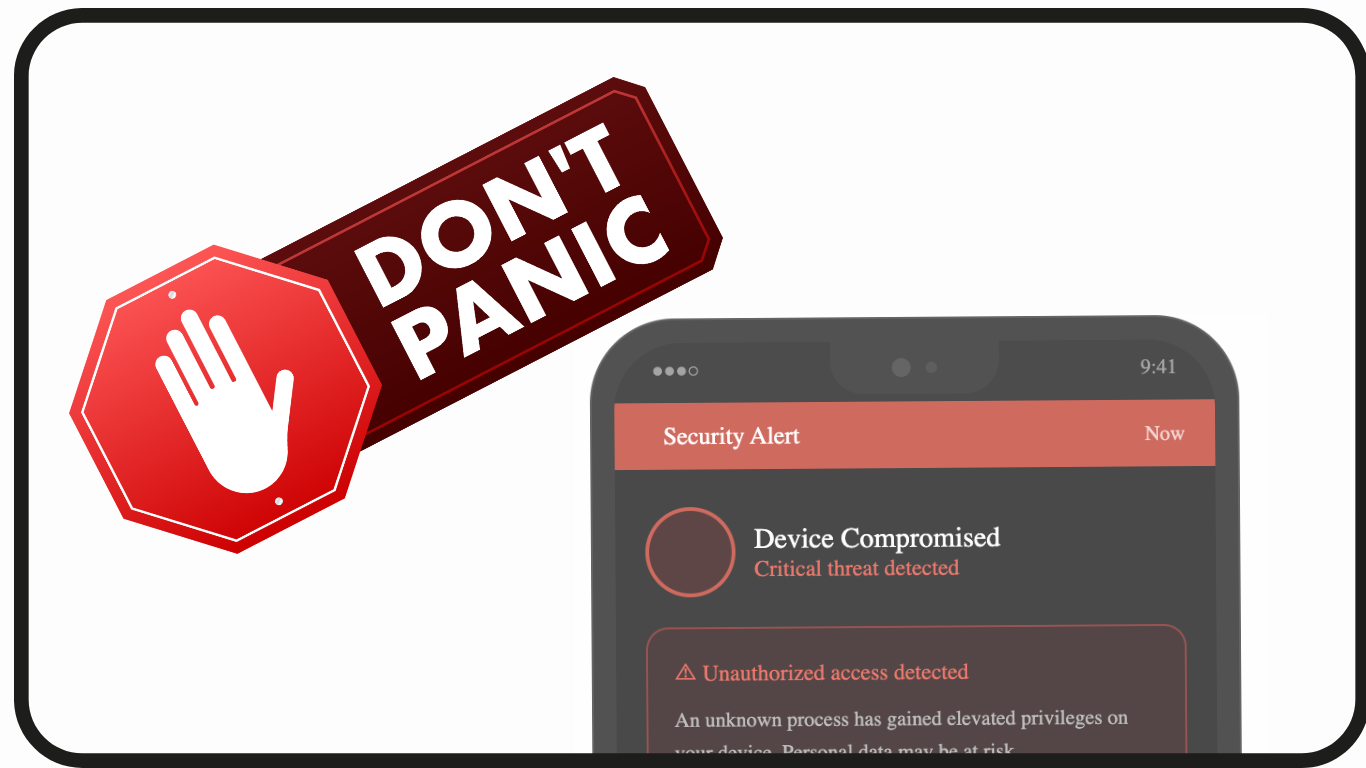
First, don’t panic. There are still steps that can help you secure your accounts.
What you will need: another trusted device to take action. For example, another phone, tablet or laptop.
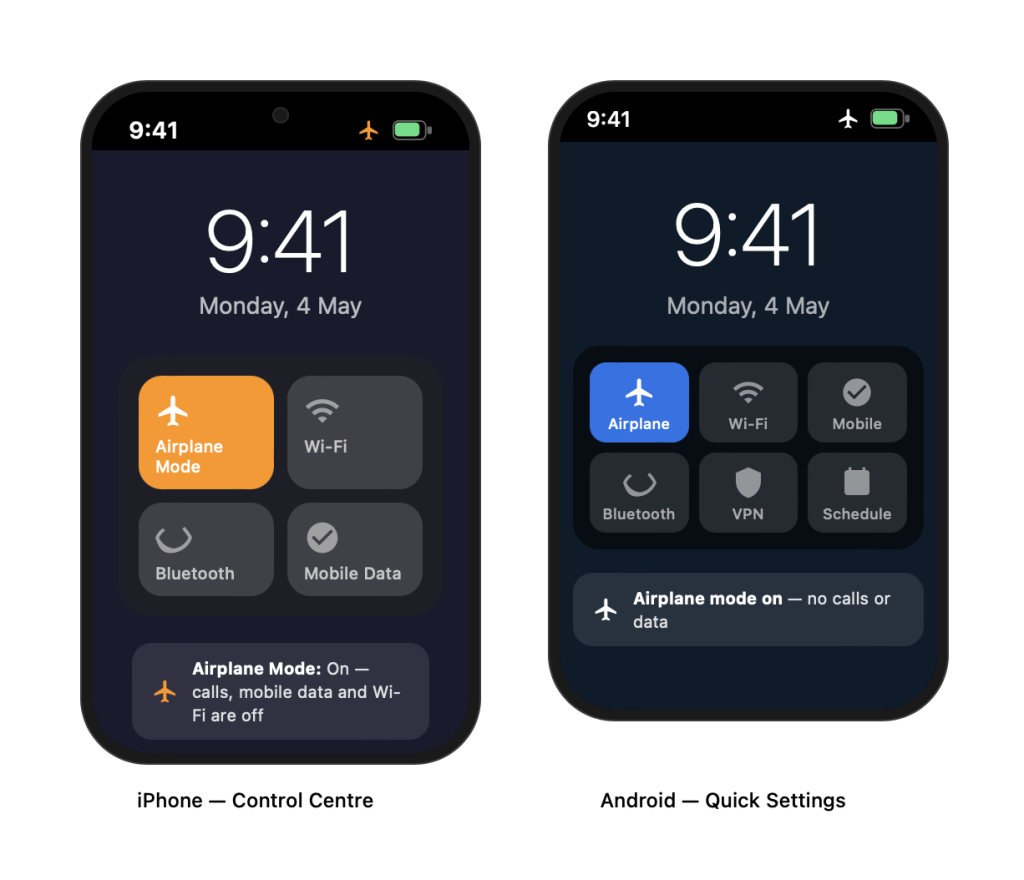
Switch your affected device to ‘Airplane mode’ and use another trusted device
Before fixing any app, take these first steps:
- Put your affected phone on ‘airplane mode’ to cut the attacker’s connection.
- Use another device (a trusted phone, tablet or laptop) to change your most critical passwords (Google, email, Singpass). immediately — see details below.
- Sign out of all active sessions other than the active session on the new trusted device — see details below.
- Call your bank’s 24-hour hotline to freeze accounts if you suspect financial access.
On the separate trusted device, try these fixes for your accounts/apps that may have been affected
Remember that it is important to keep calm but act fast, operate from a trusted device, and treat your email account as the most critical thing to secure first since everything else can be reset through it.
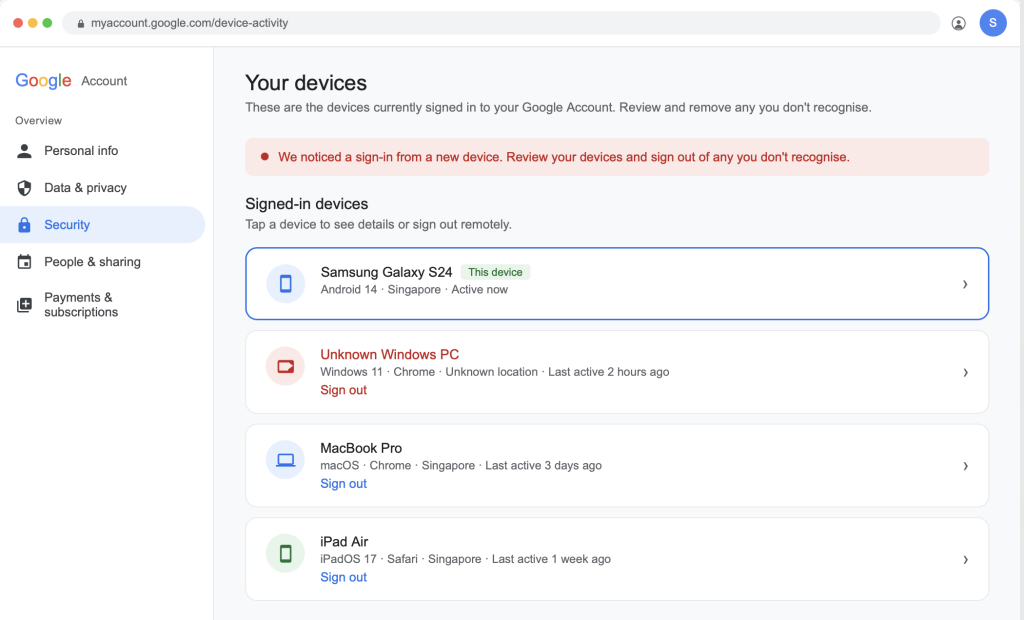
Google account
Go to myaccount.google.com → Security → Your devices → select any unknown devices and ‘Sign out’.
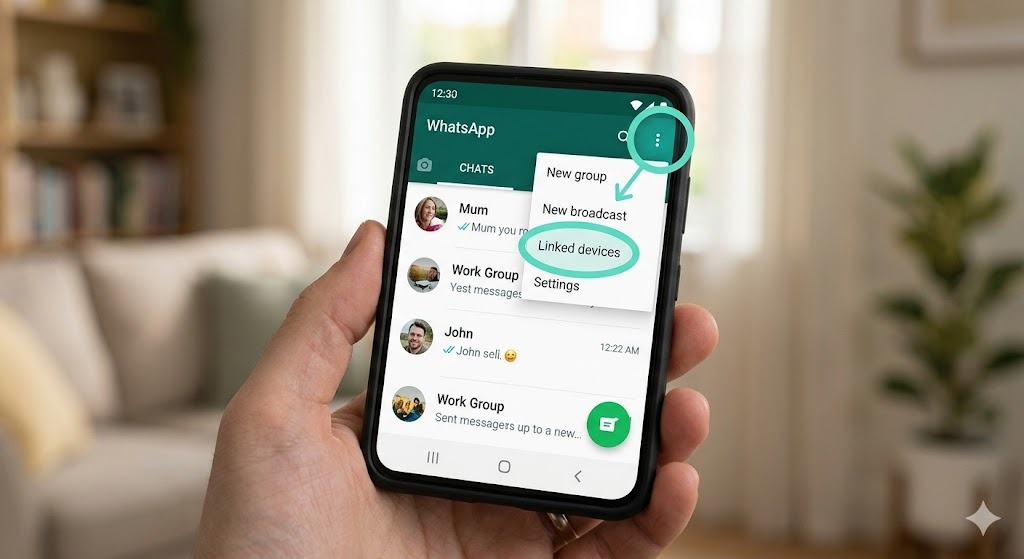
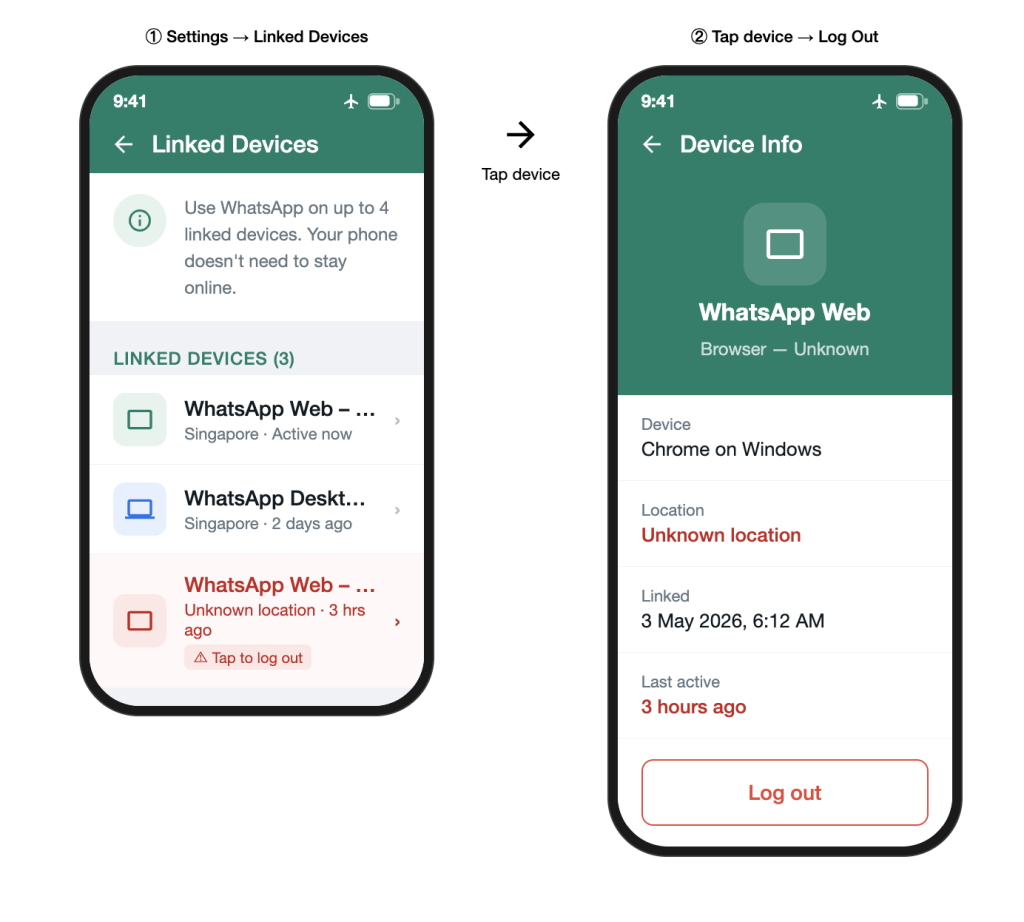
Whatsapp can only be active on one phone number at a time, but attackers can clone it or link additional devices to it.
To make these steps, you will need to turn off ‘Airplane mode’ and work quickly to:
- Log out of unknown linked devices — WhatsApp → Settings → Linked Devices → log out devices you do not recognise.
- Re-register your number — uninstall WhatsApp, then reinstall it with your number; this automatically kicks out any other session.
- Enable Two-Step Verification — Settings > Account > Two-Step Verification > set a 6-digit PIN.
- Warn your contacts — attackers may impersonate you to scam your contacts (“I’m in trouble, please transfer money”). Review all your sent messages and group activity, to see if such fake messages have been sent from your Whatsapp account. Warn the contacts or groups if there are.
Email (including Gmail)
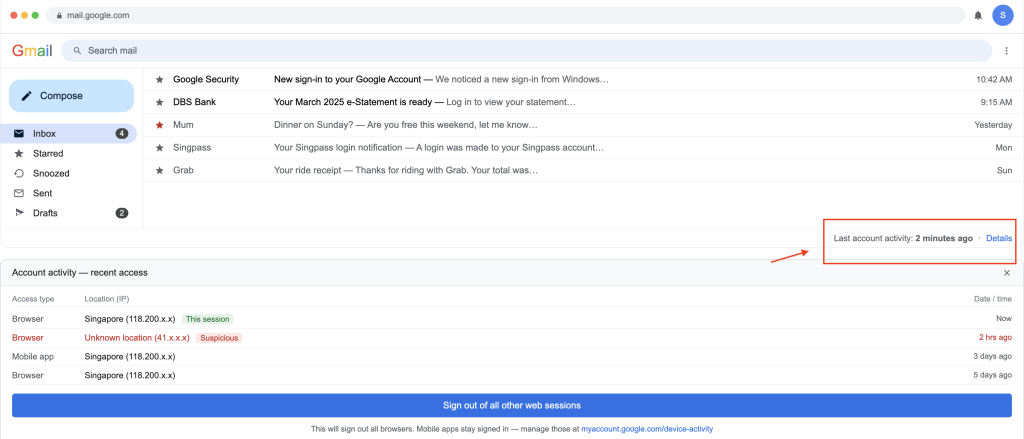
Open Gmail → scroll to the very bottom right → “Last account activity” → ‘Sign out of all other web sessions’ other than the current one on the trusted device.
For other email services, use the ‘forget password’ link to change your password.
After that, ensure you have a Two-Step Verification set up — either to a trusted alternative email, phone number, or an authenticator app (Google Authenticator, Microsoft Authenticator).
Singpass
Log into your Singpass account from the trusted device → Profile → “Active Singpass app devices” → remove any device you don’t recognise. You can also log out remotely via the Singpass website.
If you are unable to login, go to any Community Club (CC) or ServiceSG Centre with your NRIC/FIN card to seek assistance.
Paynow / DBS PayLah! / Banking apps
- Most apps by Singaporean banks have a ‘Manage Devices’ or ‘Deregister Device’ section under Settings or Security. Login to the bank apps’ website, and remove each device listed that isn’t your new trusted phone and deregister it. For DBS, for example: PayLah → Me → Manage Devices.
- Freeze or suspend your account temporarily if you suspect any suspicious transactions. Call your bank’s fraud hotline for this — Singapore banks have 24-hour hotlines for this purpose.
- Check recent transactions from a trusted device or by calling your bank — flag recent transactions for review and note anything suspicious. You may need to make a police report. Seek your bank’s advice.
Remember, your bank WILL NOT ask you for your details (name, PIN or other passwords).
Grab / GrabPay
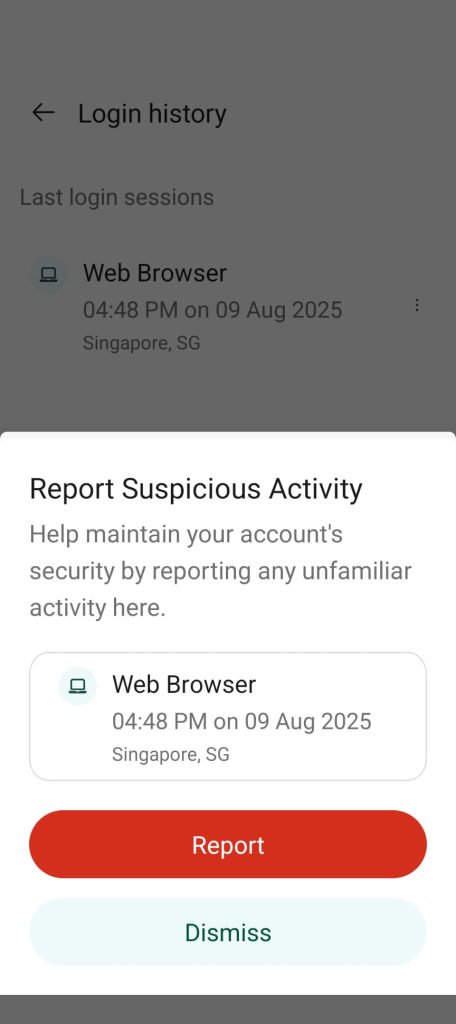
Profile → Security → Account Security → Access Management and control → ‘Report suspicious activity’. This signs out every session everywhere at once.
The phone itself (SIM & device)
- Contact your telco (Singtel, StarHub, M1, SIMBA, etc.) to check if a SIM swap has been performed without your knowledge — this is how attackers intercept SMS one-time passwords, or OTPs.
- Ask the telco to block your SIM temporarily if you suspect a swap, and issue a replacement SIM.
- Revoke Google/Apple account access from the compromised phone:
- Google: myaccount.google.com > Security > Your Devices
- Apple: appleid.apple.com > remove the compromised device
Change your phone’s screen lock PIN after you’ve cleaned or reset the device.
What next? Recovery steps
Once you have secured your accounts on your trusted device, you may make these recovery steps for your affected device and to guard against future attacks.
Action | Why |
Factory reset the phone | Most reliable way to remove malware/spyware |
Restore only essential data | Avoid restoring malicious apps from backup |
Check all app permissions | Look for apps with unusual access (microphone, camera, contacts) |
Set up an authenticator app | Shift away from SMS-based OTPs, which are vulnerable |
Check haveibeenpwned.com | See if your credentials were in a known breach; if they are, change the passwords affected |
File a police report | This is useful for insurance claims and bank dispute processes in Singapore |
Due to the dynamic nature of scam and hacking tactics, if you’re uncertain about what to do, you can try searching the internet (Google search) or using AI tools to ask specific questions.
Updated: 8 May 2026
ChatGPT, Gemini AI and Claude.AI were used to research these security steps, as well as generate the screenshots in this article. The final copy and images were edited and verified by humans before publication.